Guides
Studio: One page
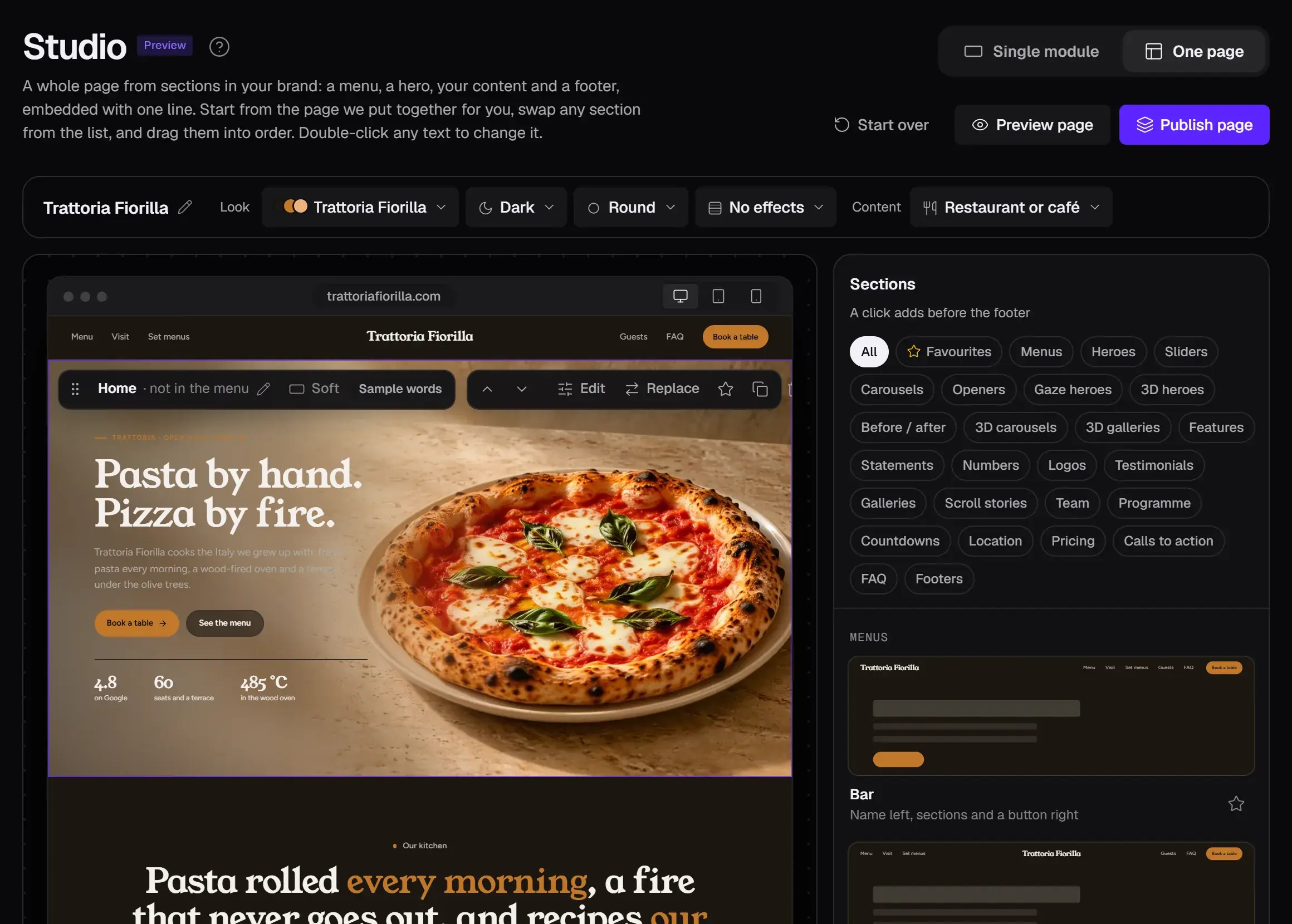
One page puts a whole page together from sections in your brand: a menu, a hero, your content and a footer. Each section becomes a module, and one line puts the page on your site.
1. Start from a page
Open Studio and switch to One page at the top. A page for your kind of business is ready to change. The bar above it:
- The page's name: the pencil renames it.
- Look: the brand, dark or light, the corners (square, soft or round) and the page's effects (an edge fade, grain or a chalk line).
- Content: your kind of business, with its words, pictures and sections. On a page you changed it asks first: Keep my sections or Use its page.
2. Arrange the sections
- Add: the list on the right has every kind of section, from menus and heroes to pricing, questions and footers. A click adds one before the footer; Add a section between two sections adds it there. The star keeps a layout in Favourites.
- Move: drag a section by its handle, or use the arrows in its tools.
- Swap: Replace puts another layout in its place.
- Copy or remove: the last buttons of its tools duplicate or remove it. A removed section can be brought back.
- Name: the pencil beside its name renames it and sets whether the menu links to it.
3. Change the words and pictures
Double-click any text on the page to change it. Sample words in a section's tools means it still says what we wrote for the sample.
Edit opens a section large. A hero, slider or carousel opens with the tools of a single module: its picture, Look, motion and effect. Other sections open a larger view, where a click changes a text or swaps a picture. Done puts it back into the page.

Preview page shows the page full screen, as a visitor sees it, on desktop, tablet or phone.
4. Publish the page
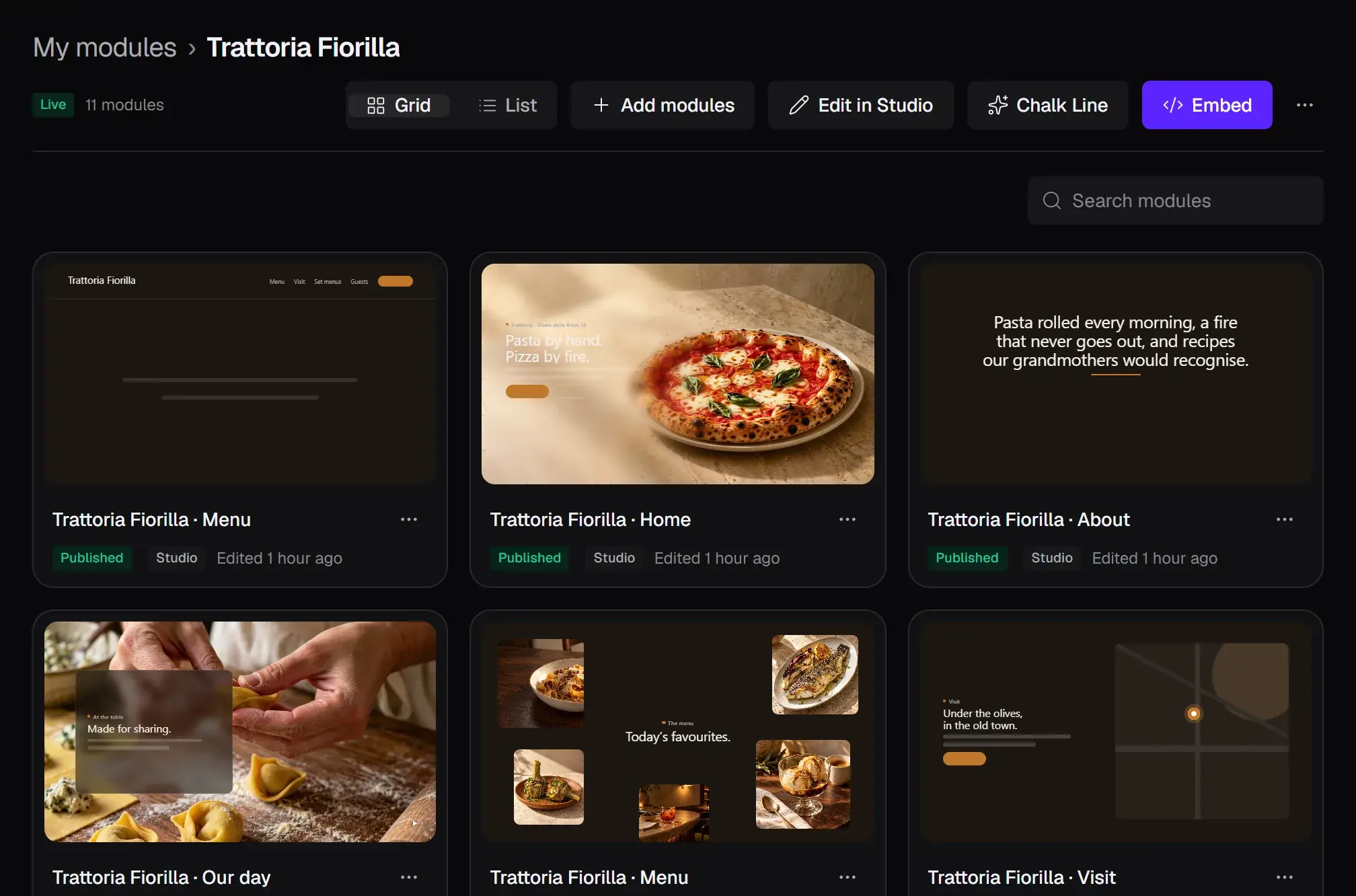
Publish page makes each section a module in your brand and puts them together in My modules as a group, in the page's order. If sections still show sample words, it asks first.
You land on the group, and its embed dialog opens: Publish there puts every section live, and the group's one line plays them one under the other. Paste it where the page should appear. A published page counts as one of your plan's live modules, however many sections it has.
5. Change it later
Edit in Studio on the group, or Edit on any of its sections, opens the page in One page again. The button now says Update page: it makes the same modules again as new drafts, in the page's new order, and the line stays. Then Publish the drafts in the group's embed dialog.