Guides
Templates and Quick Edit
Every template is finished down to its animation. Pick one, make it yours in Quick Edit and put it on your site with one line. Layout, animation and timing stay as the designer made them.
1. Find a template
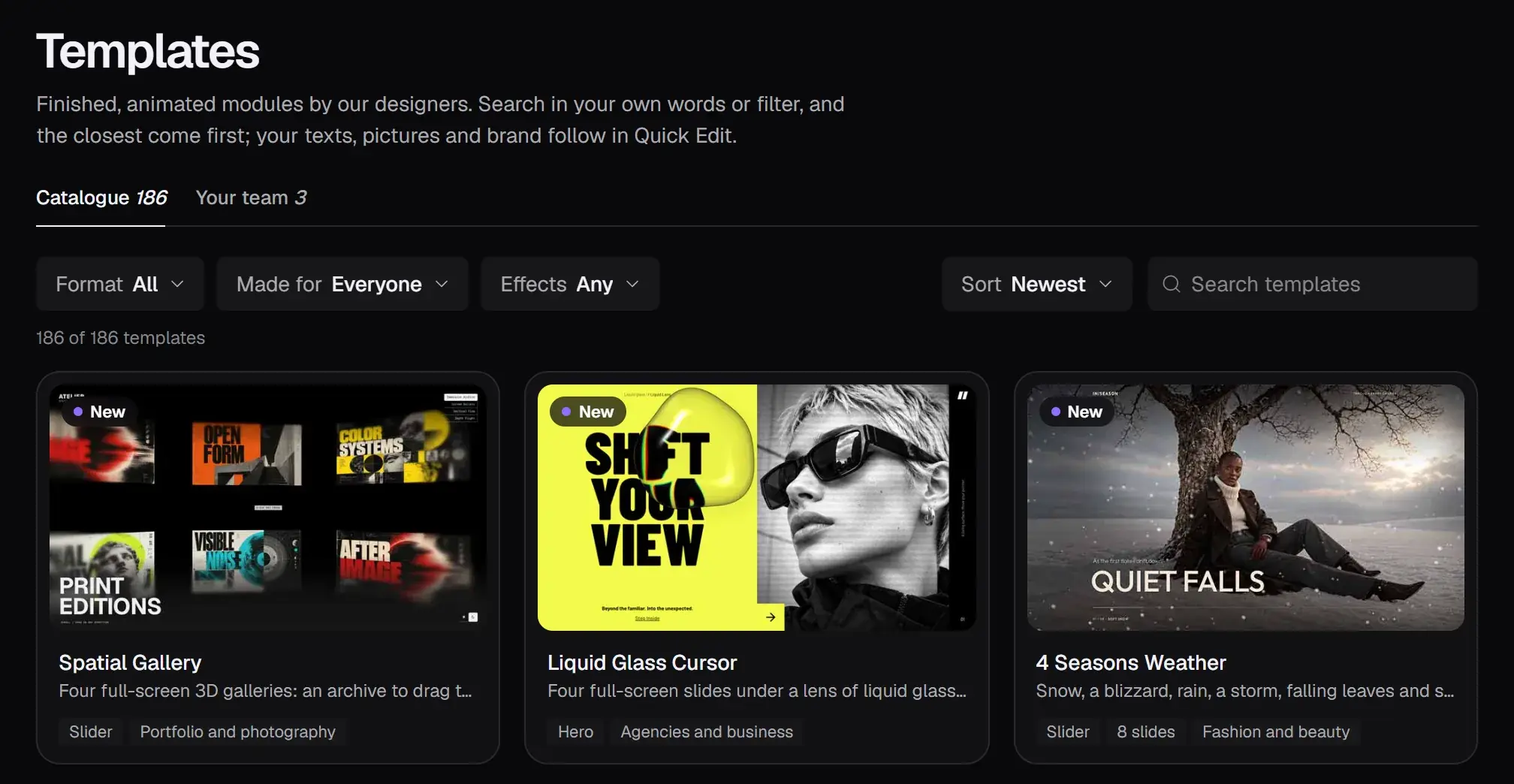
Open Templates in SR Anywhere. Narrow the list with Format (hero, slider, carousel or a one-page website), Made for (your kind of business) and Effects, or search in your own words: the closest come first. A card plays when you point at it.
2. Look at it closely
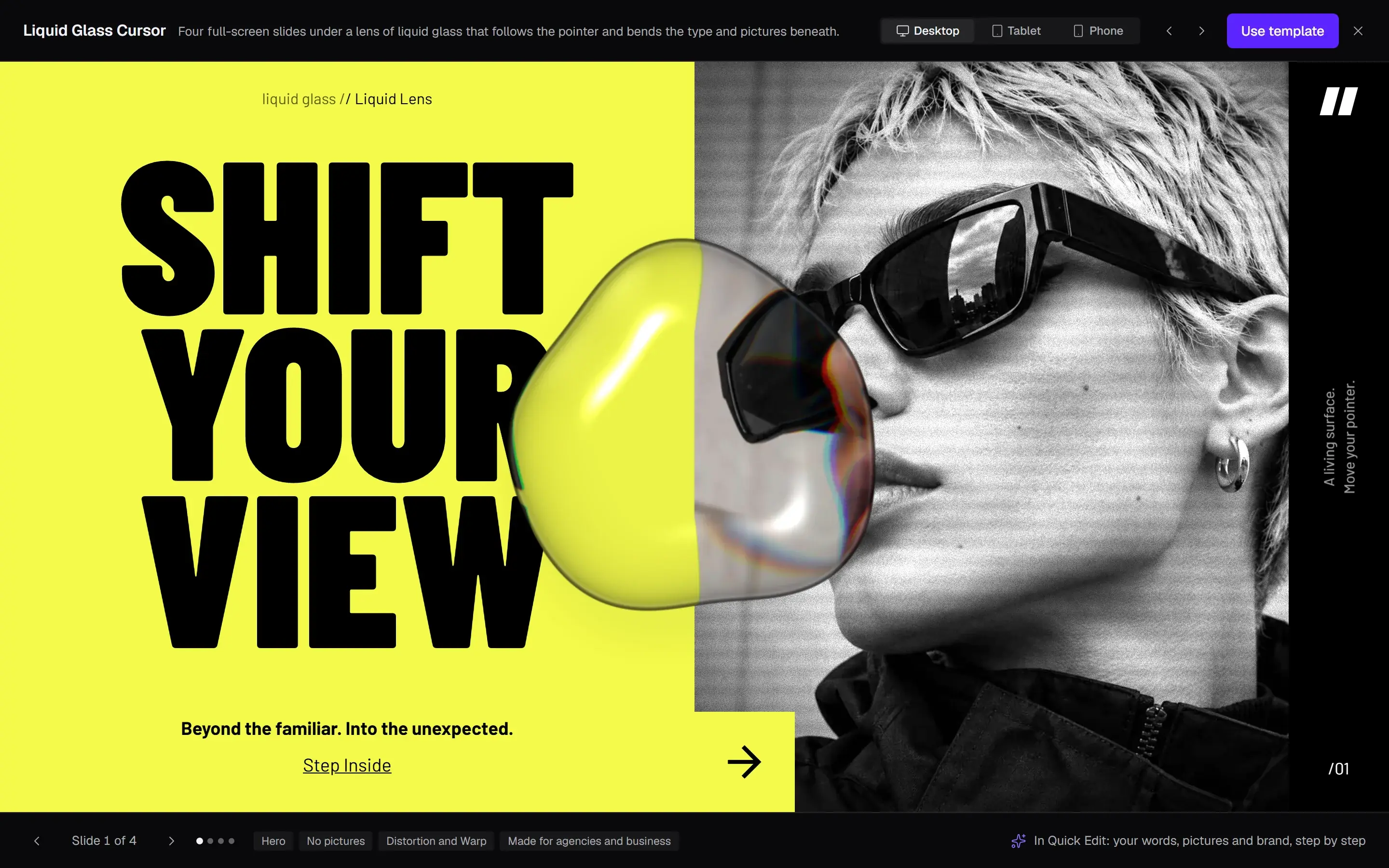
Click a card for its preview. Switch between Desktop, Tablet and Phone, step through its slides and move the pointer over it: an effect that follows the pointer reacts here as it will on your site. The arrows beside the screens go to the next template.
3. Use template
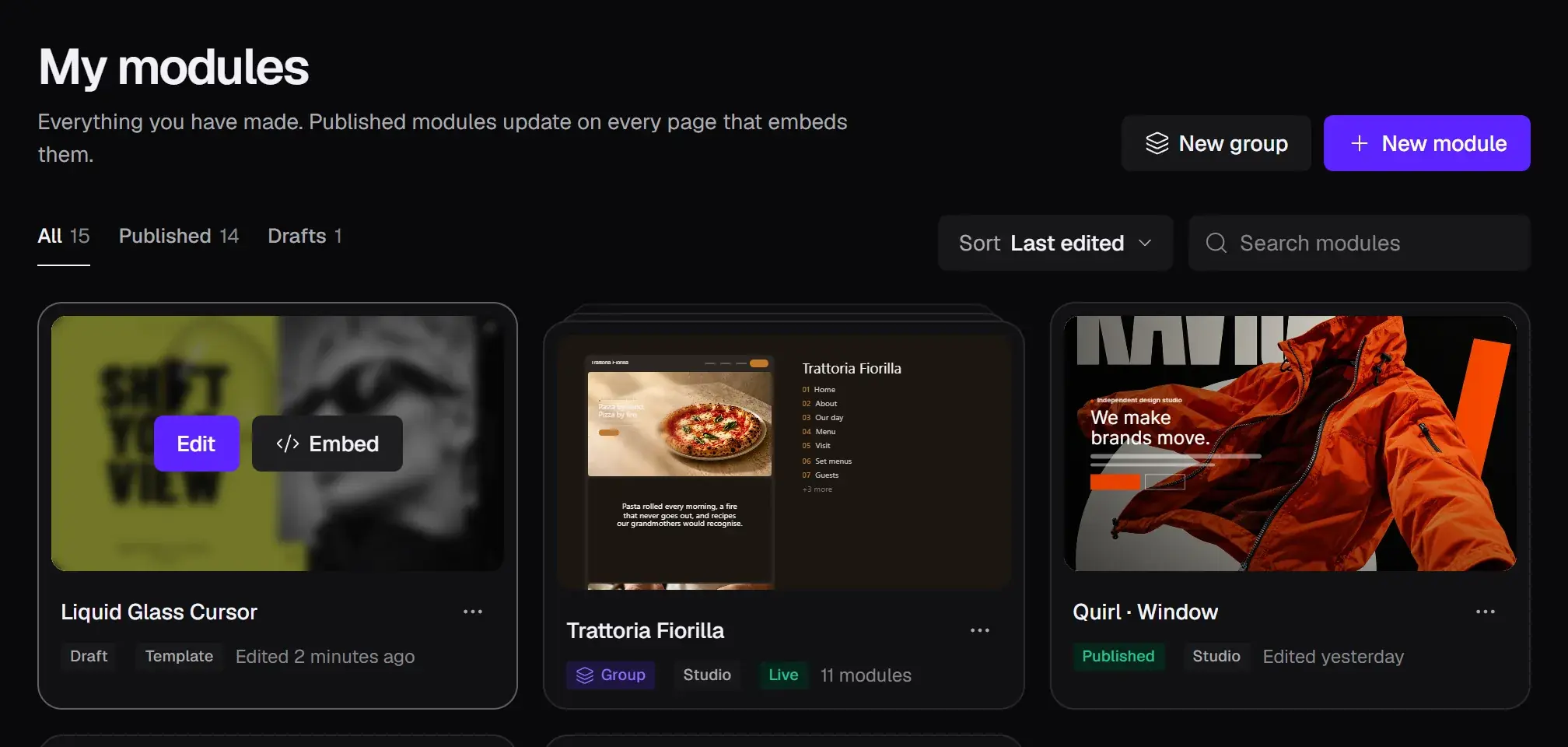
Use template copies it into My modules as your own module, a draft until you publish it. Two kinds ask first:
- Websites come as several pages. Use the pages you need, or Use all: they land together as a group, in their order.
- Some heroes have several slides. Use as hero takes one of them; or use them all as a slider.
Point at the module in My modules for its two buttons: Edit opens it in Quick Edit, Embed gives you its line.
4. Make it yours in Quick Edit
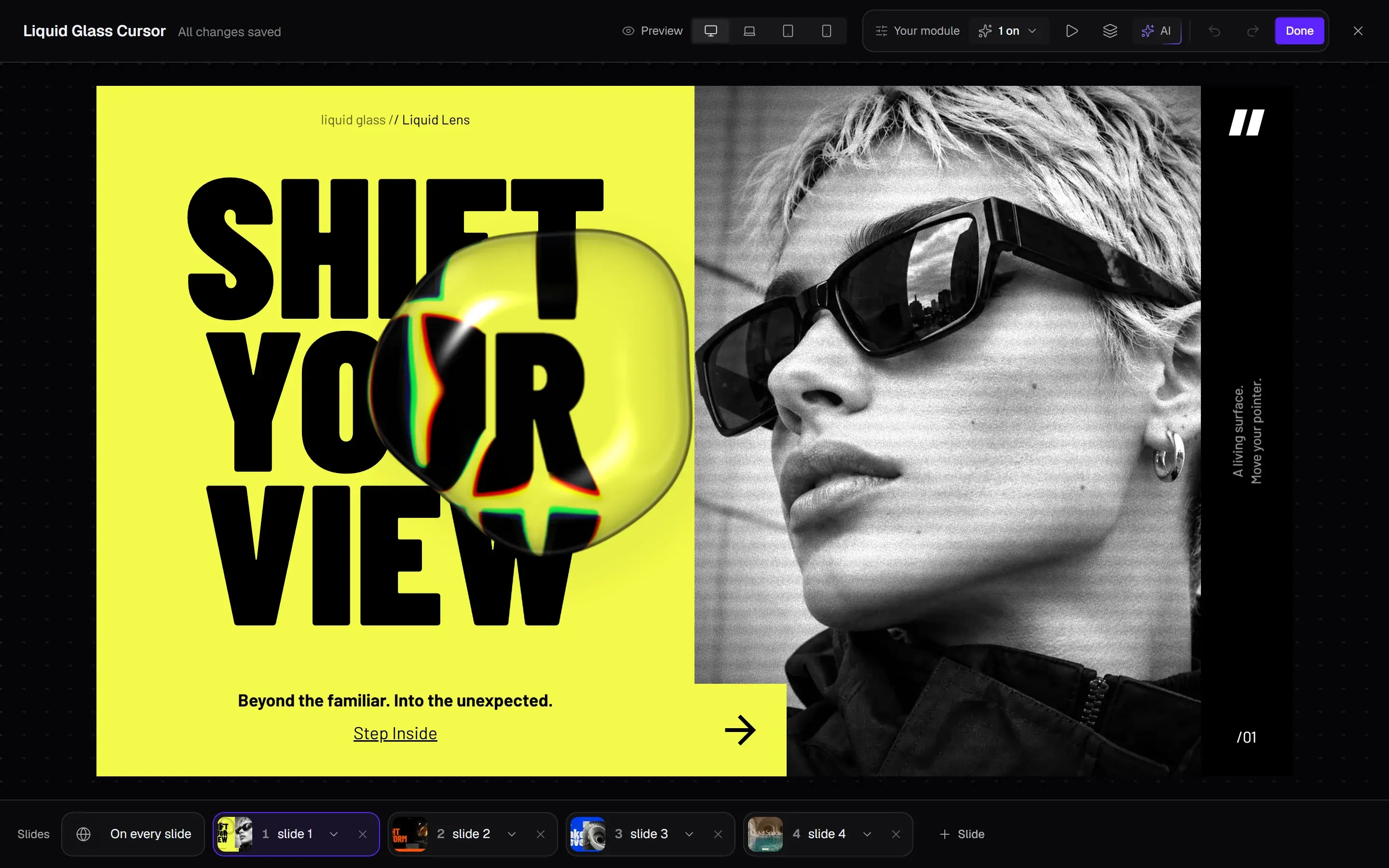
Quick Edit shows the module as it plays, with its tools at the top and its slides at the bottom.
- Words: click a text and type. Enter keeps it, Shift and Enter start a new line, Escape goes back. A text stops at the length its design has room for.
- Pictures and videos: click one, then Replace picture or Replace video: your media library opens, to pick or upload. Add Alt text to a picture that says something.
- Fonts and colours: a selected text's toolbar has Aa for its font, size and spacing, for this text or for every text like it, and its colour, with your brand's colours first. Links are in the same toolbar.
- Effects: the effects menu says how many are on. Switch each one on or off, pick another look for it, or go back to As designed.
- Slides: drag them into order along the bottom. Each one's menu duplicates, moves, hides or deletes it, and Slide adds a copy of the one you are on. On every slide holds what all of them share, like a logo or a menu.
- Screens: Desktop, Laptop, Tablet and Phone at the top. Type and colour follow the desktop until you change them on a screen, and a text's menu can hide it on one.
Play runs the animation again, Layers lists everything on the slide, and Undo and Redo step back and forth. Position, animation and timing stay as designed, so nothing can break. For those, Open in full editor in the module's menu in My modules opens the full Slider Revolution editor.
5. Or let AI assist do it
AI (Ctrl and J) opens AI assist beside the module. Make it mine goes through your words, your brand and your pictures step by step; or start with Apply my brand, Rewrite the texts or Replace the images, or describe the change in your own words. Layout and animation stay as designed.
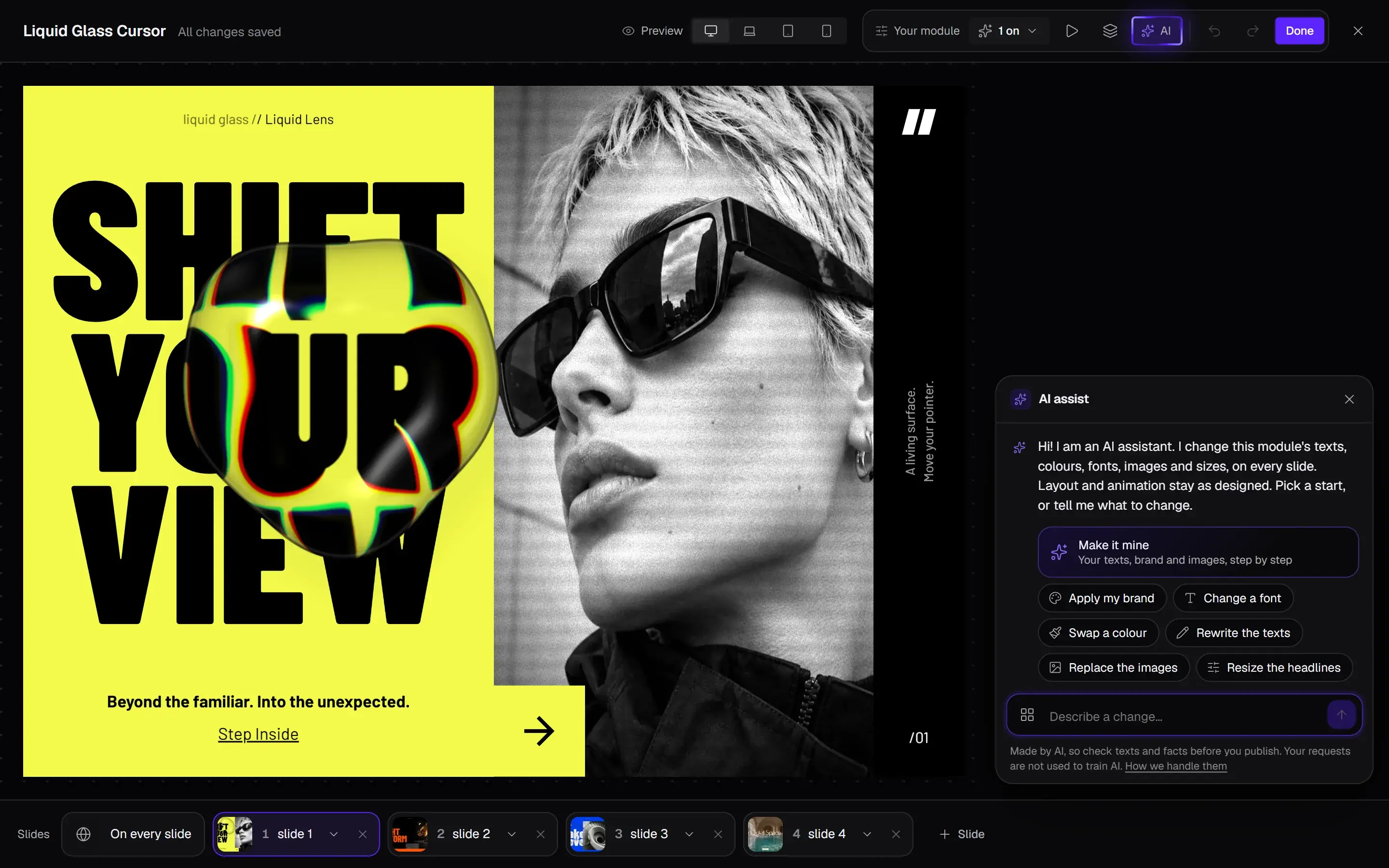
AI assist comes with your plan: 10 requests to try on Free, 150 a month on Pro, 450 on Agency. Read what it wrote before you publish.
6. Save, publish and embed
Done saves your changes into the module's draft and goes back to My modules; Ctrl and S save without closing. Quick Edit does not save by itself, so closing with changes asks first.
Then open Embed on the module and click Publish. Its line appears: pick your platform to see where it goes, and Copy it.
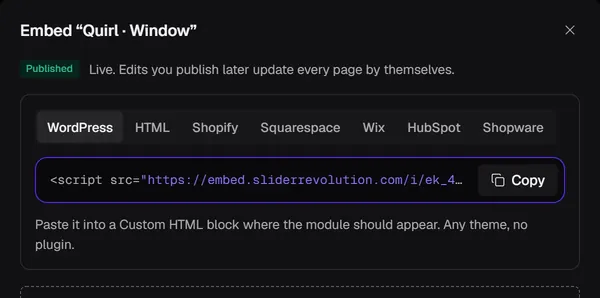
Change it again later and publish again: until you do, the card says Unpublished changes and Embed offers Publish changes. Every page with the line then shows the new version by itself. Publishing and updates