Guides
Studio: Single module
The Studio makes heroes, sliders, carousels and 3D modules in your brand: your colours, fonts and corners, your words in every layout, your pictures or a live effect.
1. Open the Studio
Open Studio in SR Anywhere and keep Single module at the top. One page beside it makes a whole page: Studio: One page.
2. Pick your brand
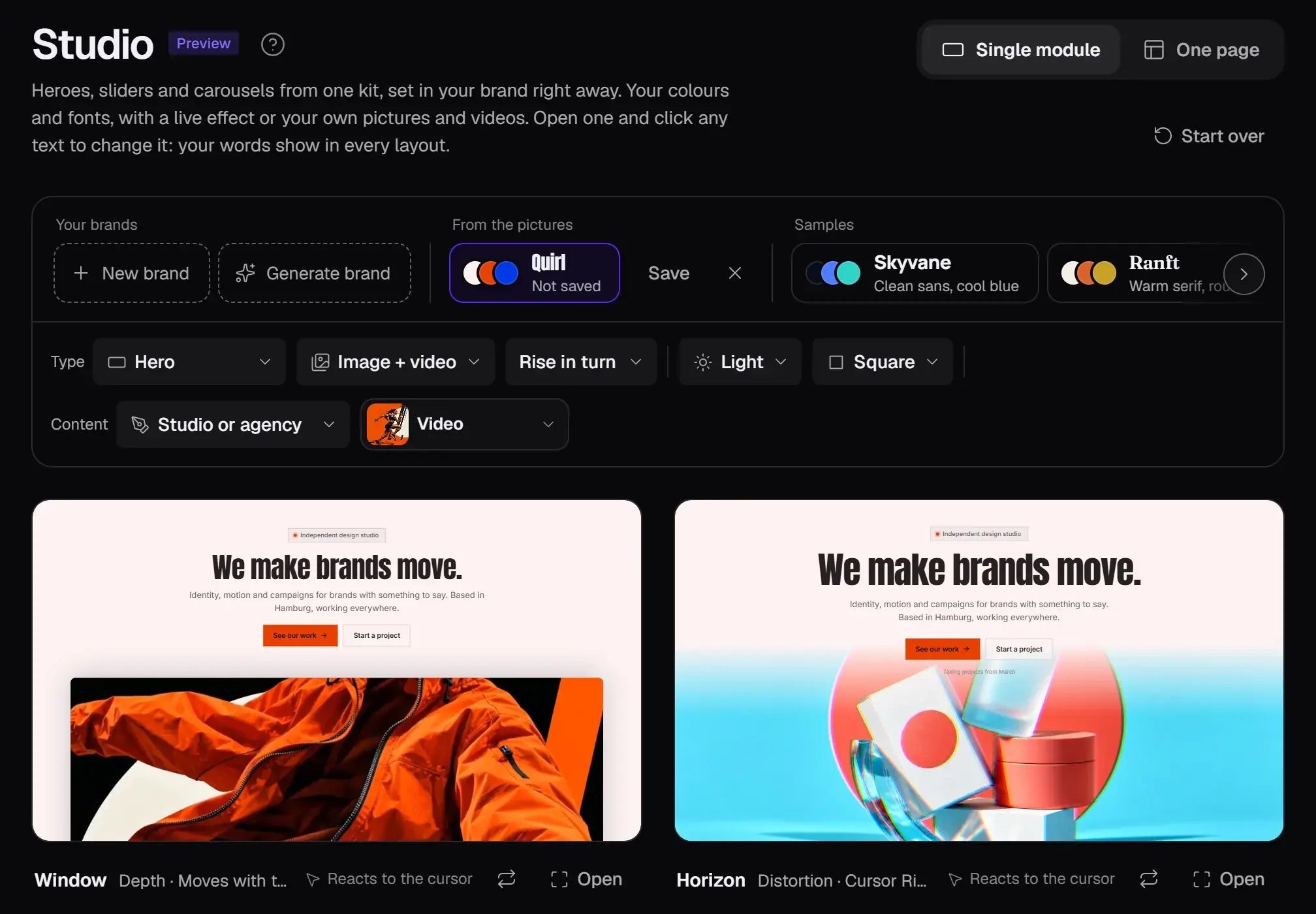
The brand bar sets the colours, fonts and corners of every layout below.
- Your brands are the ones you saved. New brand sets one up: its name, colours, fonts, corners and logo.
- Generate brand reads a brand from your pictures. It shows under From the pictures, not saved, until you Save it.
- Samples are brands of our own to try the Studio with.
3. Choose what to make
Type picks the kind of module: a hero, slider, carousel, Gaze hero, 3D hero, before and after, 3D carousel or 3D gallery. Beside it, choose what it is made with (your pictures and videos, a live effect or both), how it moves in, light or dark, and its corners. Content picks the sample words and pictures for your kind of business until you put in your own. Sliders and carousels also take their number of slides and their navigation.
Every layout below follows these choices. Reacts to the cursor marks the ones that follow the pointer, and the arrows beside it try another effect.
4. Open a layout and make it yours
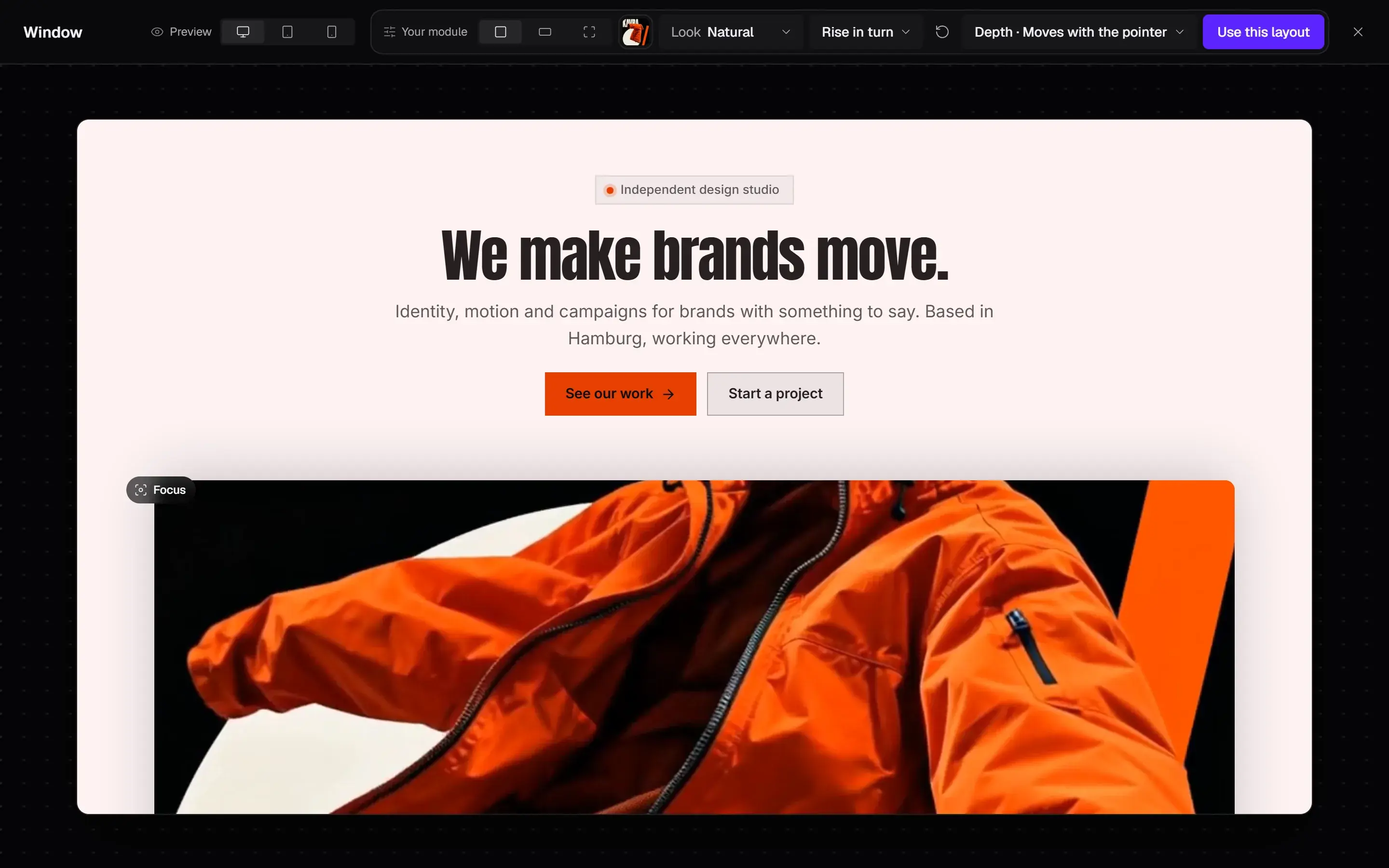
Open shows a layout large. Click any text to change it: your words then show in every layout. A button takes its link the same way.
The bar above it has Preview for desktop, tablet and phone, and Your module: its size (auto, full width or full screen), its picture or video from your media library, its Look, its motion and, on a hero, its effect.
5. Use this layout
Use this layout (Use this slider on a slider, and so on) builds the module in your brand and puts it in My modules as a draft, named after the brand and the layout, like "Quirl · Window". Publish it from Embed and copy its line, as any module.
6. Change it later
Edit on the module opens it in the Studio again, as you left it. Change what you like: the button now says Update module. It makes a new draft of the same module, so its line stays; publish it to update your pages.
Work you leave unfinished comes back too: My modules shows Unfinished in the Studio, with Continue.